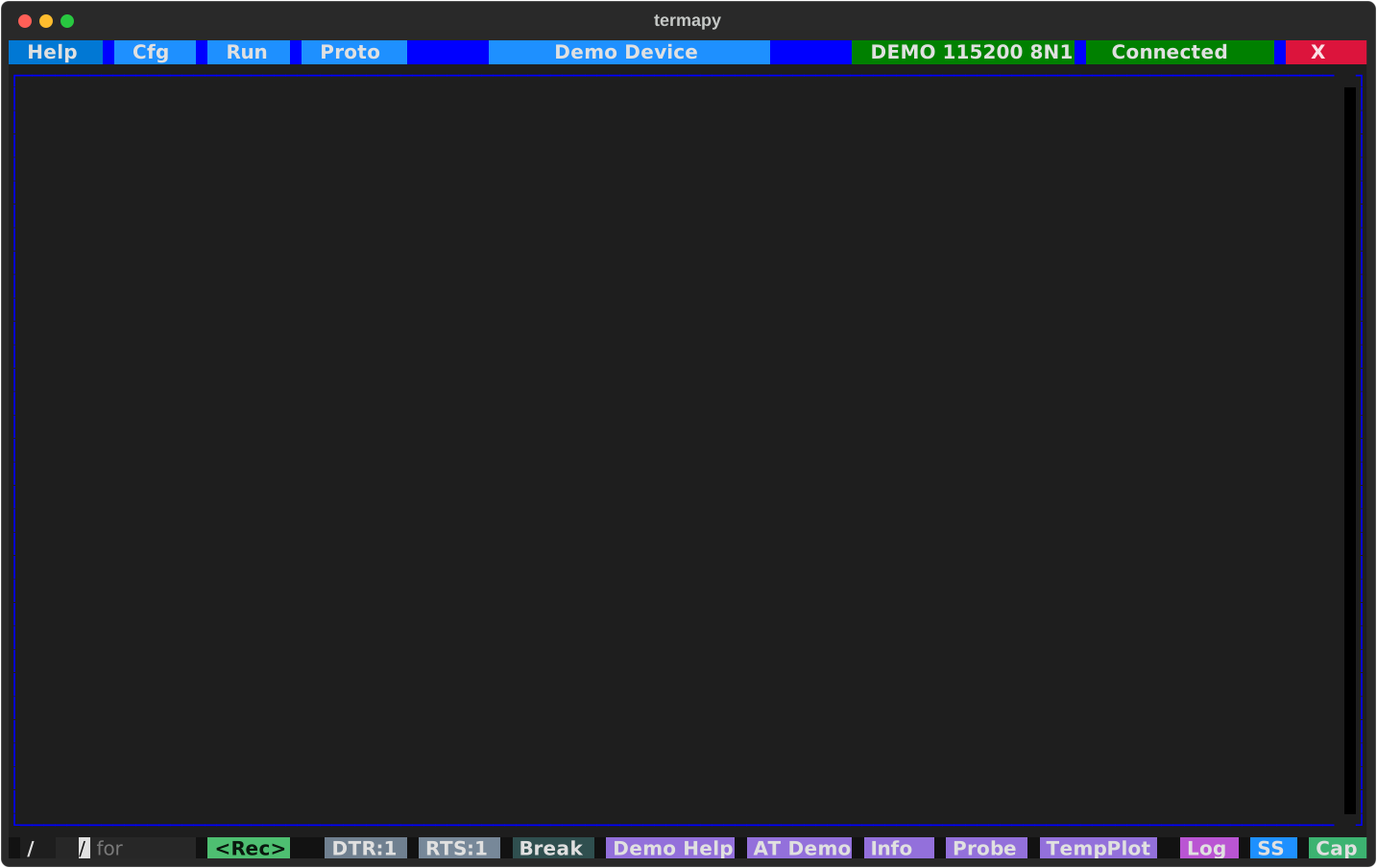
Custom buttons
Add custom buttons to the toolbar by configuring custom_buttons
in your JSON config. Each button can send serial commands, run REPL commands,
or execute scripts. The default config includes one enabled button (Info, which runs
/cfg.info) plus three disabled placeholders. Enable them and fill in
the fields, or add more entries.
Each button object has these fields:
| Field | Description |
|---|---|
enabled |
true to show the button, false to hide it |
name |
Label displayed on the button |
command |
Command to execute when clicked |
tooltip |
Hover text for the button |
Example
"custom_buttons": [
    {
        "enabled": true,
        "name": "Info",
        "command": "/cfg.info",
        "tooltip": "Project info"
    },
    {
        "enabled": true,
        "name": "Reset",
        "command": "ATZ",
        "tooltip": "Send ATZ reset"
    },
    {
        "enabled": false,
        "name": "Btn3",
        "command": "",
        "tooltip": "Custom button 3"
    }
]
Command format
- Plain text is sent to the serial device (e.g.
"ATZ") - Commands starting with
/run as REPL commands (e.g."/run test.run") - Use
\nto chain multiple commands (e.g."ATZ\nAT+INFO") - Mixed serial and REPL commands work:
"ATZ\n/delay 500ms\nAT+INFO"
Custom buttons appear in the toolbar between the hardware buttons and the system buttons (Log, SS, Cap), with a small gap separating them. The demo config's five buttons (Demo Help through TempPlot):