File transfer
Transfer files to and from serial devices using XMODEM or YMODEM protocols. Both are widely supported by bootloaders, firmware updaters, and embedded systems.
XMODEM
Send a file
Send a file from your PC to the device. The file path is resolved
relative to the per-config cap/ directory, or provide an absolute path.
The device must be waiting to receive via XMODEM before you run this command (e.g. after entering a bootloader's receive mode).
Receive a file
Receive a file from the device and save it to the cap/ directory.
Supports auto-numbered filenames with $(n000).
Protocol details
- Automatic CRC/checksum negotiation
- 128-byte blocks
- Progress reported during transfer
YMODEM
YMODEM extends XMODEM with batch file transfer, 1024-byte blocks, and automatic filename/size metadata in the protocol header.
Send file(s)
Send one or more files. YMODEM includes the filename and size in the protocol, so the receiver knows what to expect.
Receive file(s)
Receive files from the device. YMODEM provides the filename
automatically. Files are saved to the specified directory, or cap/
by default.
YMODEM protocol details
- 1024-byte blocks (1K) with CRC-16
- Filename and filesize sent in protocol header
- Batch transfer: send/receive multiple files in one session
File paths
By default, file paths are resolved relative to the per-config cap/
directory. Absolute paths are always accepted.
/xfer.xmodem.send firmware.bin              cap/firmware.bin
/xfer.xmodem.send C:\builds\release.hex     absolute path
/xfer.xmodem.recv dump.bin                  saved to cap/dump.bin
/xfer.xmodem.recv log_$(n000).bin           auto-numbered in cap/
/xfer.ymodem.send config.json               cap/config.json
/xfer.ymodem.recv                           saved to cap/ (filename from protocol)
/xfer.ymodem.recv C:\downloads              saved to specified directory
Custom transfer root
When set, both send and receive resolve relative paths against this
directory instead of cap/. The transfer root is shown as a clickable
path when a config loads (at the verbose output level).
This sets the file_xfer_root config key, which can also be edited
directly in the JSON config file.
The cap/ directory lives inside the active config folder. For example,
if your config is termapy_cfg/mydevice/mydevice.cfg, then cap/ is
termapy_cfg/mydevice/cap/. In demo mode, it's termapy_cfg/demo/cap/.
Click the Cap button in the toolbar to open the cap/ folder.
Common details
- Transfers need a connected port and an interactive session (TUI or CLI); they are not available over MCP
- Serial display is suppressed during transfer and resumes afterward
- Press Esc to cancel an active transfer
- Progress reported during transfer
XMODEM vs. YMODEM
| Feature | XMODEM | YMODEM |
|---|---|---|
| Block size | 128 bytes | 1024 bytes |
| Error detection | CRC-16 or checksum | CRC-16 always |
| Filename in protocol | No | Yes |
| Batch transfer | No | Yes |
| Use when | Simple bootloaders | Larger files, batch |
Demo mode
The demo device has a virtual filesystem pre-loaded with sample files.
All examples below work in demo mode (termapy --demo).
Filesystem commands
AT+FS.LIST                  list files with sizes
AT+FS.INFO                  file count and total size
AT+FS.DELETE <file>         delete a file
Transfer commands
AT+XMODEM=SEND <file>      send a file from device via XMODEM
AT+XMODEM=RECV <file>      receive into device VFS via XMODEM
AT+YMODEM=SEND <file>      send a file from device via YMODEM
AT+YMODEM=RECV              receive into device VFS (name from protocol)
Pre-loaded files: config.dat (64 bytes), device_log.txt (147 bytes),
firmware_v1.bin (2048 bytes).
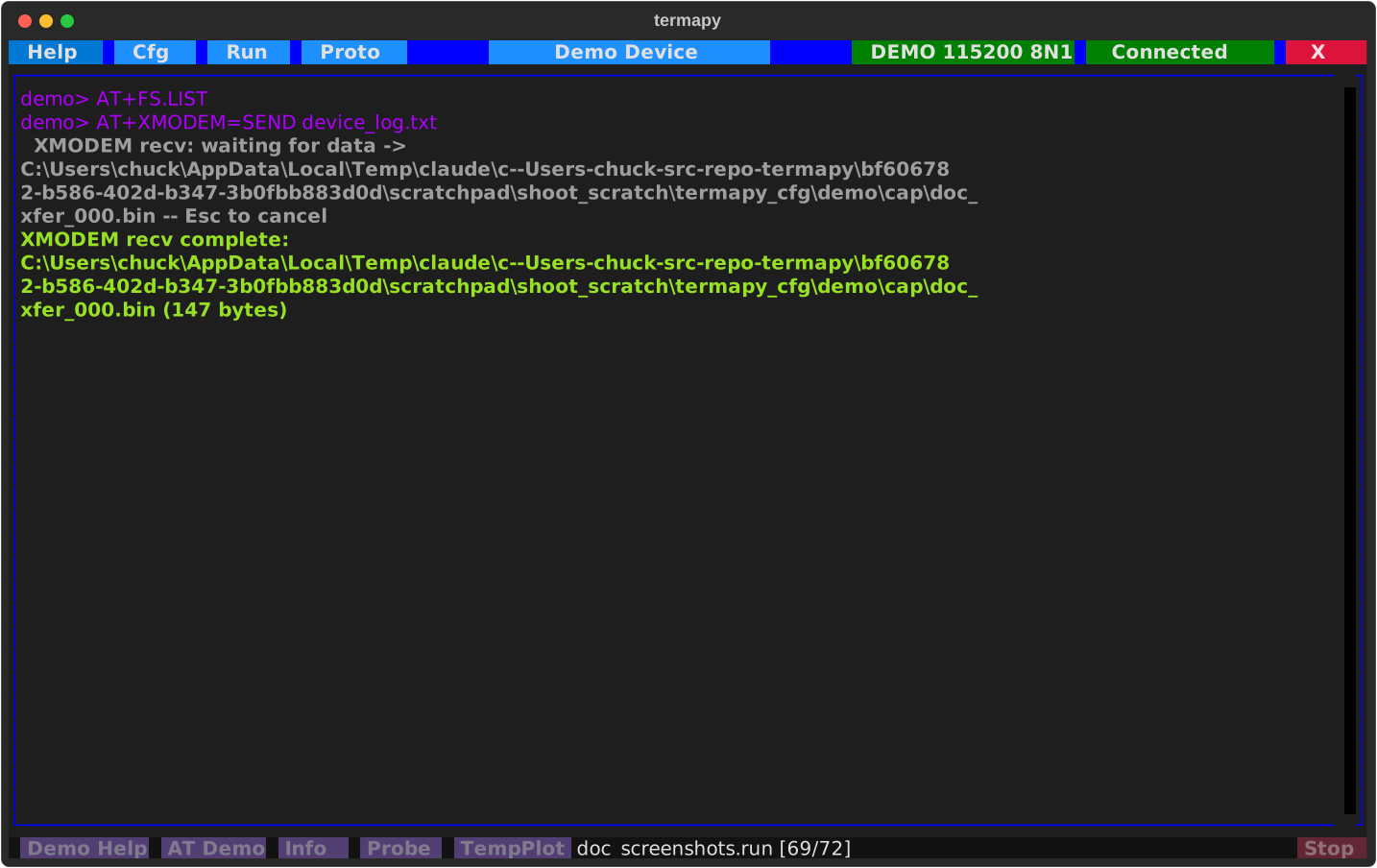
Example: pull a file via XMODEM
Tell the device to send first, then termapy receives. Both commands are needed -- one for each end of the transfer:
AT+XMODEM=SEND device_log.txt      device enters XMODEM send mode
/xfer.xmodem.recv device_log.txt        termapy receives into cap/
Example: push a file back via XMODEM
After pulling a file (above), you can push it back under a new name. Again, tell the device first:
AT+XMODEM=RECV log_backup.dat      device enters XMODEM receive mode
/xfer.xmodem.send device_log.txt        termapy sends from cap/
AT+FS.LIST                         verify it arrived on device
Example: pull a file via YMODEM
YMODEM includes the filename in the protocol, so the receiver gets the name automatically:
AT+YMODEM=SEND firmware_v1.bin     device enters YMODEM send mode
/xfer.ymodem.recv                       termapy receives (name from protocol)
Example: push a file back via YMODEM
After pulling firmware (above), push it back:
AT+YMODEM=RECV                     device enters YMODEM receive mode
/xfer.ymodem.send firmware_v1.bin       termapy sends from cap/
AT+FS.LIST                         verify it arrived on device
Example: browse, transfer, and clean up
AT+FS.LIST                         see what's on the device
AT+FS.INFO                         file count and total size
AT+XMODEM=SEND device_log.txt      pull the log
/xfer.xmodem.recv device_log.txt
AT+FS.DELETE device_log.txt         clean up on device
AT+FS.LIST                         confirm deletion
See Data Capture for passive serial capture to files.