Toolbar and shortcuts
Title bar buttons
The top bar has the title-bar buttons plus a centered config name:
| Button | Position | Action |
|---|---|---|
| Help | Top-left | Open this help guide |
| Cfg | Top-left | Load / Edit / New / Rename / Delete a config |
| Run | Top-left | Run / Edit / New / Rename / Delete a script |
| Proto | Top-left | Run / Debug / Edit / New / Rename / Delete a .pro script |
| Update | Top-left | Appears only when a newer termapy is on PyPI |
| Config name | Center | Click to edit the currently-loaded config |
| Port name | Top-right | Click to open the serial port picker |
| Status | Far-right | Click to connect or disconnect |
| X | Corner (OS) | Red — close the connection and quit |
The X sits top-left on macOS/Linux and top-right on Windows, matching
each platform's window-control convention. Cfg, Run, and Proto can be
hidden per config via cfg_enabled, run_enabled, and proto_enabled.
Typing the bare command (e.g. /cfg) is equivalent to clicking the
button. The Cfg, Run, and Proto pickers list files newest first with
size and age columns under a header row; Run adds the script's
docstring summary, Cfg the port, baud, and title.
Hover over any of the config, port, or status buttons to see a detailed tooltip with current settings and chip information.
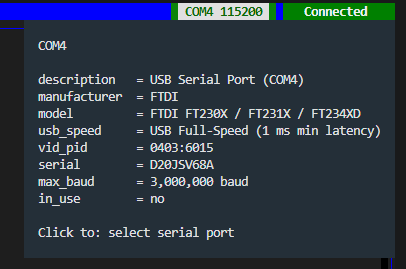
Port picker
Clicking the port name in the title bar (or picking Select Port
from the command palette) opens a dialog listing every connected
serial port with its USB chip identification. The list auto-refreshes
about once a second, so plug / unplug events appear without re-opening
the dialog — handy for identifying which COM port belongs to which
physical device. For a full tour of the port picker, the /port.info
and /port.chip commands, the termapy --info CLI flag, and the rest
of termapy's serial-port diagnostics, see Serial ports.
Toolbar buttons
The bottom bar has buttons. Some appear based on context:
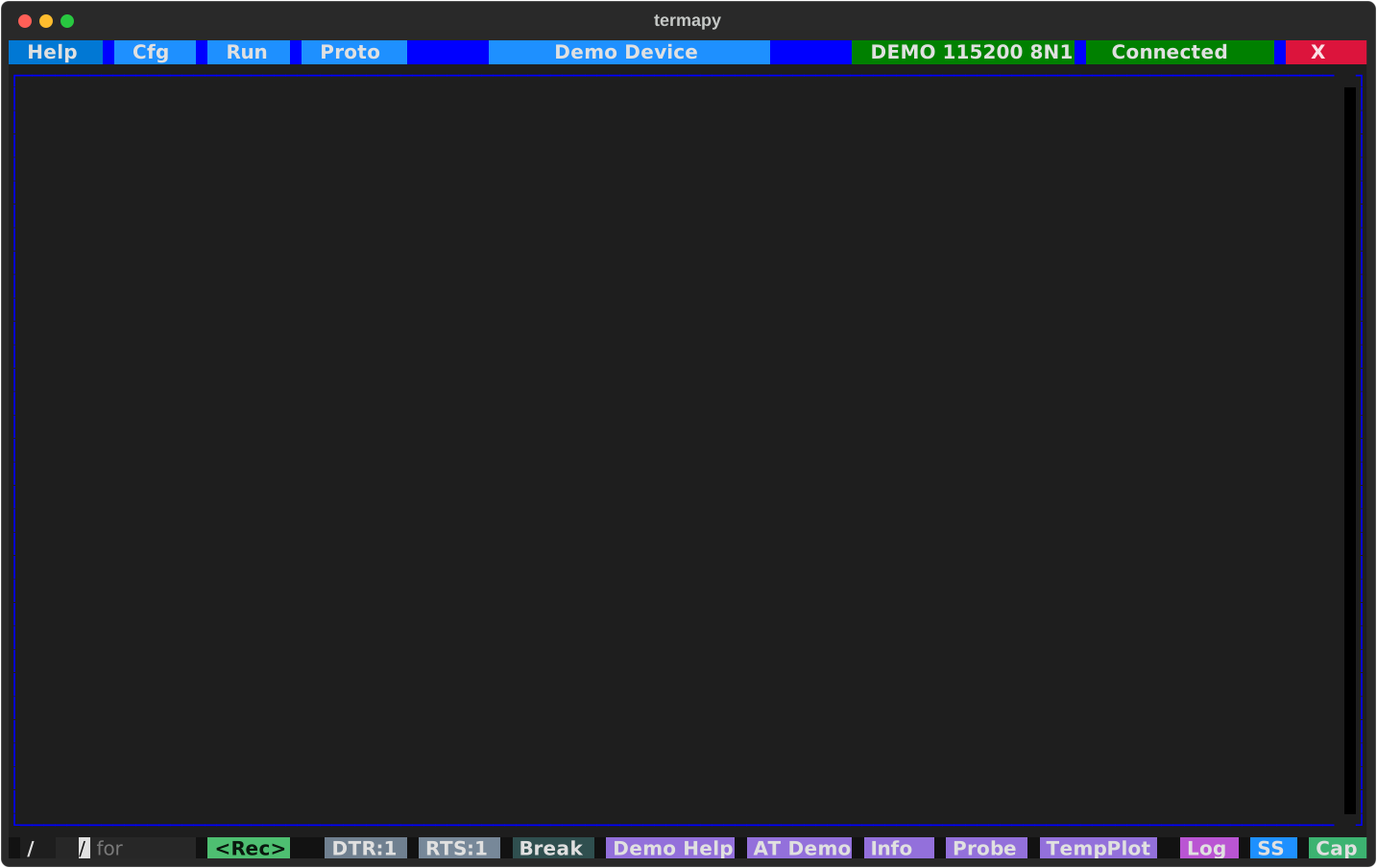
| Button | When Visible | Action |
|---|---|---|
| / | Always | Show REPL command picker (filters as you type) |
| \<Rec> | record_enabled (default) |
Record typed commands to a .run script |
| DTR:0/1 | flow_control is "manual" |
Toggle the DTR hardware line |
| RTS:0/1 | flow_control is "manual" |
Toggle the RTS hardware line |
| Break | flow_control is "manual" |
Send a 250ms serial break signal |
| Custom | custom_buttons enabled |
User-defined command buttons |
| Log | Always | Open the session log in your editor |
| SS | Always | Open the screenshot folder |
| Cap | Always | Open the cap/ folder |
| ^ v x | While /find is active |
Previous / next match, close the find bar |
Scripts are picked and run from the Run button in the title bar
(or /run); quitting is the red X in the title bar (or Ctrl+Q).
Keyboard shortcuts
| Key | Action |
|---|---|
| Ctrl+Q | Quit (also dismisses any open dialog) |
| Escape | Dismiss dialog / clear input / exit history |
| F1–F4 | Help / Cfg / Run / Proto (same as the buttons) |
| F10 | Edit the current config |
| Ctrl+Shift+1–5 | Same four, plus Edit Config on 5 |
| Ctrl+P / Alt+P | Open command palette |
| Ctrl+S / Alt+S | Save SVG screenshot |
| Ctrl+T / Alt+T | Save text screenshot |
| Ctrl+C / Cmd+C | Copy selected text to the clipboard |
| Up/Down | Cycle through command history |
| Right | Accept type-ahead suggestion |
The Ctrl+Shift+digit and Alt+letter aliases work inside VS Code's
integrated terminal, which intercepts some F-keys and Ctrl chords.
Clearing the screen is /cls (or the palette's Clear Screen); the
screenshot folder is the SS button (or /ss.explore).
Copying text
Drag across the main output window to select text, then press Ctrl+C (Cmd+C on macOS) to copy it to your clipboard. The copy travels over the terminal's OSC 52 channel, so it lands on the clipboard of whatever machine your terminal is running on — including over SSH. A few older terminals don't support OSC 52; if the copy does nothing, hold Shift (or Alt in some terminals) while dragging to use your terminal's own selection instead.
Command palette
Press Ctrl+P (or Alt+P if your terminal captures Ctrl+P -- VS Code's integrated terminal does) to open the command palette. It drops down from the top-center of the window, like VS Code's command palette, with fuzzy filtering as you type and a most-recently-used list when opened with an empty query.
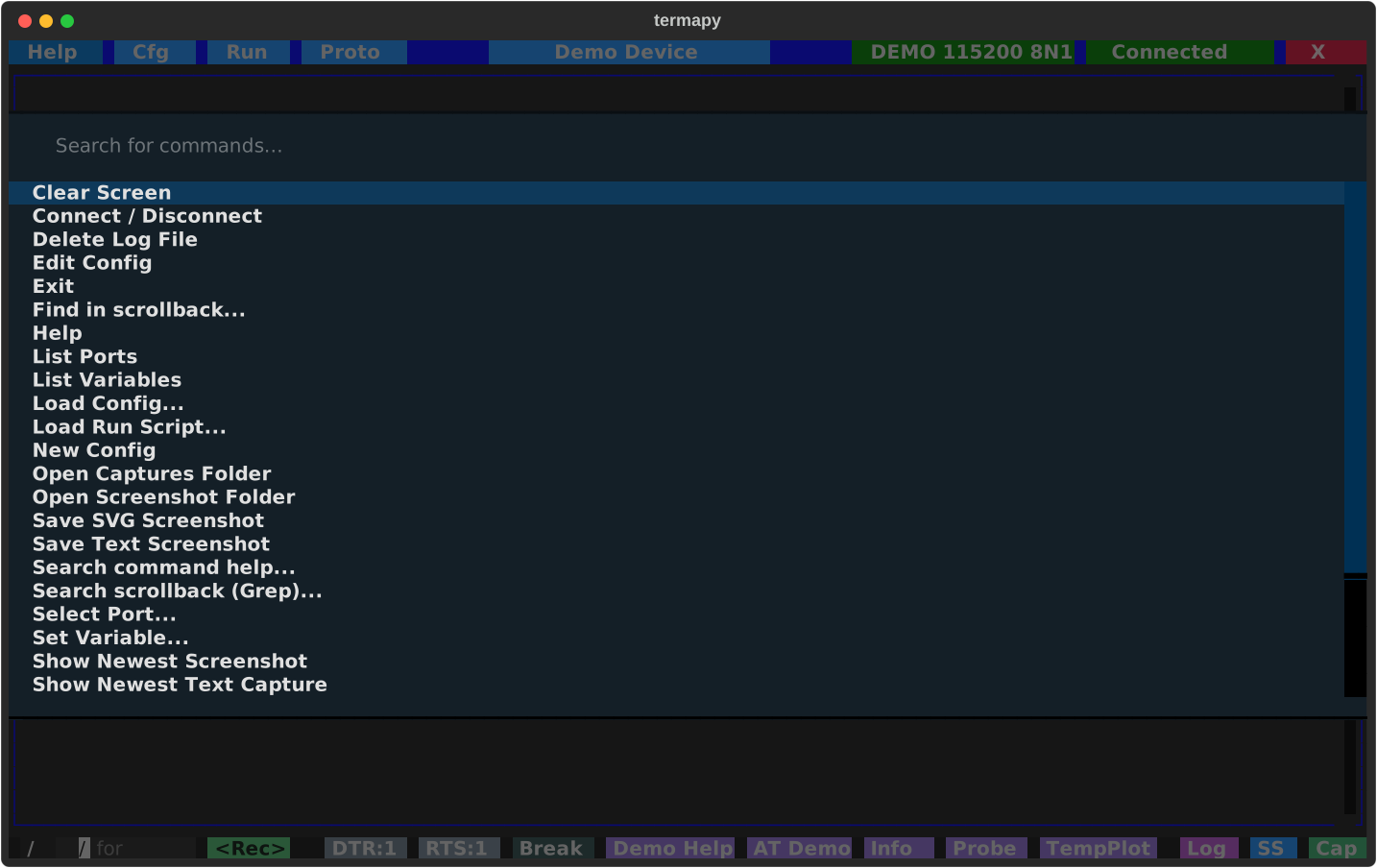
Highlights include:
- Help
- Find in scrollback / Grep scrollback / Search command help
- Select Port
- Connect / Disconnect
- Edit, Load, or Create a Config
- Load Run Script
- View / Delete Log File
- Clear Screen
- Save SVG / Text Screenshot
- Open Screenshot Folder
- Open Captures Folder
- Show Newest Screenshot
- Show Newest Text Capture
- Exit